Free YouTube profile picture maker. Upload, crop to circle, add filters & text. Perfect 800x800px size. No watermarks. Download in seconds.
YouTube Profile Picture Maker
Create professional YouTube profile pictures in seconds – Free online tool
How to Create a YouTube Profile Picture (Step-by-Step)
YouTube profile picture size: 800 x 800 pixels minimum. Your image displays as a circle, so center important elements.
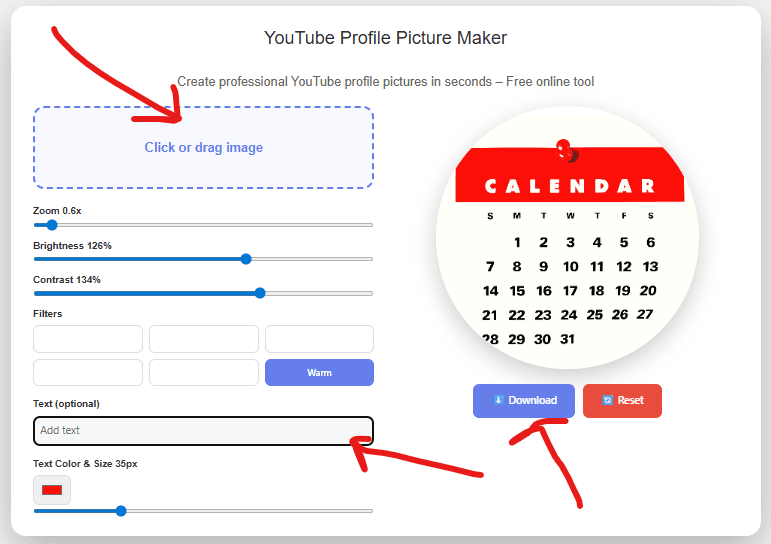
Step 1: Upload Your Image
Click the upload area or drag your photo directly. JPG and PNG formats work best. Use a high-resolution image (at least 800x800px) to avoid pixelation.
Step 2: Position and Zoom
Drag your image to reposition it within the circular frame. Use the zoom slider to fit your subject perfectly. Keep faces centered and avoid placing important details near the edges—they’ll be cropped by the circular format.
Step 3: Adjust Image Quality
Fix lighting issues with brightness and contrast sliders. Dark photos? Increase brightness. Washed out? Boost contrast. These adjustments ensure your profile picture looks professional across all devices.
Step 4: Apply Filters (Optional)
Choose from six filters to match your brand style:
- B&W: Professional, timeless look
- Sepia: Vintage, warm tone
- Cool: Modern, tech-focused feel
- Warm: Friendly, inviting appearance
Step 5: Add Text (Optional)
Add your channel name or initials. Keep it short (1-3 characters work best). Choose high-contrast colors—white text on dark images, dark text on light images. Position text at the bottom to avoid covering your face.
Step 6: Download
Click “Download” to save your profile picture as a PNG file with transparent background support.
YouTube Profile Picture Requirements
- Minimum size: 800 x 800 pixels
- Maximum file size: 4MB
- Format: JPG, GIF, BMP, or PNG
- Display: Appears as a circle everywhere on YouTube
- Important: Must follow YouTube’s Community Guidelines (no offensive content)
Also see: 3000 x 3000 Image Resizer
Best Practices for YouTube Profile Pictures
1. Use Your Face or Logo
Personal channels: Close-up face shots perform best. Build trust and recognition with viewers.
Brand channels: Use your logo centered in the circle. Ensure it’s readable at small sizes (as small as 32×32 pixels in comments).
2. Choose High Contrast
Your profile picture appears on various backgrounds. High-contrast images remain visible whether displayed on white, dark, or colored backgrounds.
3. Keep It Simple
Complex images become unrecognizable at small sizes. One focal point works better than multiple elements. Test how your image looks at thumbnail size before uploading.
4. Maintain Consistency
Use the same profile picture across all social platforms (Instagram, Twitter, TikTok). Consistent branding helps viewers recognize your content instantly.
5. Update Periodically
Refresh your profile picture annually or when rebranding. Regular updates keep your channel looking active and current.
How to Upload Your Profile Picture to YouTube
- Go to YouTube Studio (studio.youtube.com)
- Click “Customization” in the left menu
- Click “Branding” tab
- Click “Upload” under Picture
- Select your downloaded profile picture
- Adjust the crop if needed
- Click “Done” then “Publish”
Changes appear immediately on your channel. The new profile picture shows on all your videos and comments within minutes.
Common YouTube Profile Picture Mistakes
Using low-resolution images: Blurry profile pictures look unprofessional. Always start with at least 800×800 pixels.
Ignoring the circular crop: Square images with text in corners lose information when cropped to circles. Center all important elements.
Too much text: Text becomes unreadable at small sizes. Stick to 1-3 characters maximum, or skip text entirely.
Changing too frequently: Constant changes confuse your audience. Maintain the same profile picture for at least 6-12 months unless rebranding.
Using random or irrelevant images: Generic stock photos don’t build brand recognition. Use images that represent you or your channel’s niche.
Why Use Our YouTube Profile Picture Maker
- No registration required: Create profile pictures instantly without signing up
- Free forever: No hidden costs, premium tiers, or watermarks
- Real-time preview: See exactly how your profile picture looks as a circle
- Works offline: All processing happens in your browser—no uploads to external servers
- Mobile-friendly: Create profile pictures from your phone or tablet
Free Resource: Getting started on YouTube
FAQs
Q: What size should my YouTube profile picture be?
A: 800 x 800 pixels minimum. YouTube recommends this size to ensure your image looks sharp across all devices and display sizes.
Q: Can I use a rectangular image?
A: Yes. This tool automatically crops rectangular images into circles. Center your subject before downloading to ensure nothing important gets cut off.
Q: Do I need Photoshop to create a YouTube profile picture?
A: No. This free online tool provides all essential features without requiring expensive software or design skills.
Q: How often should I change my YouTube profile picture?
A: Keep the same profile picture for 6-12 months minimum. Frequent changes hurt brand recognition. Only update when rebranding or if your current image no longer represents your channel.
Q: Why does my profile picture look blurry on YouTube?
A: You uploaded a low-resolution image. Use at least 800×800 pixels and ensure your source image is high quality before editing.
Q: Can I use my YouTube profile picture on other platforms?
A: Yes. The circular format works on most social media platforms including Twitter, Instagram, and Facebook. Using the same image across platforms improves brand consistency.
Ready to create your YouTube profile picture? Use the tool above to generate a professional-looking profile picture in under 2 minutes. No signup, no cost, no watermarks.