
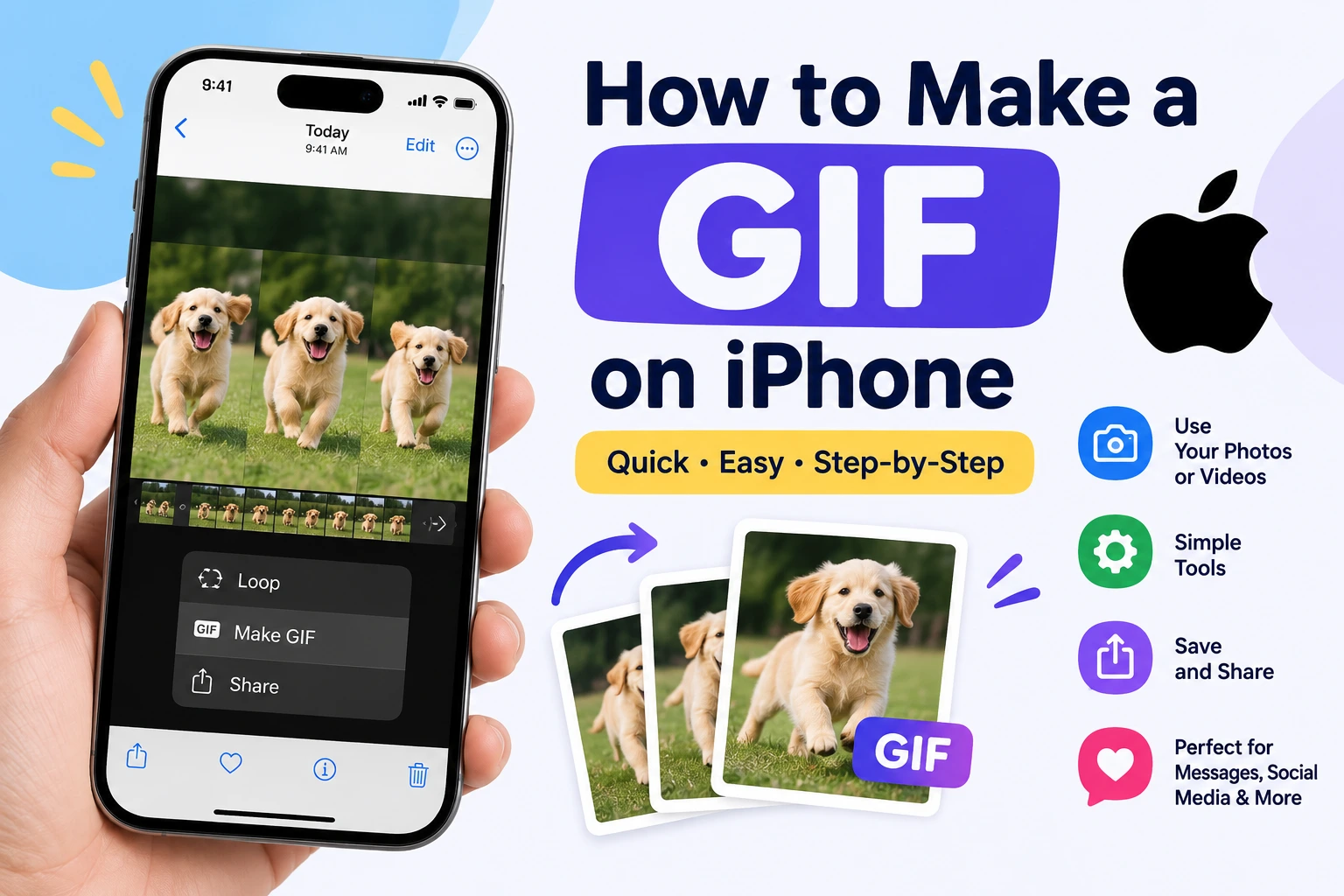
Want to turn a photo, Live Photo, or short video into a GIF on your iPhone? You can do it without complicated software. The iPhone has built-in options, and apps such as Shortcuts can make the process even easier.
A GIF is a short animated image that plays repeatedly. It is useful for sharing reactions, tutorials, funny moments, product demonstrations, and short clips on social media or messaging apps.
In this guide, you will learn how to make a GIF on iPhone using simple methods.
Can You Make a GIF on an iPhone?
Yes. You can create a GIF on an iPhone from a Live Photo, video, or multiple photos.
The easiest method depends on the type of content you want to convert.
- Live Photo → GIF
- Video → GIF
- Multiple photos → animated GIF
- Screen recording → GIF
You can also use third-party GIF-making apps if you want more editing options.
How to Make a GIF from a Live Photo on iPhone
Live Photos are one of the easiest ways to create a GIF on an iPhone.
Method 1: Use the Photos App
- Open the Photos app.
- Find the Live Photo you want to use.
- Open the photo.
- Tap the Live button near the top-left.
- Select Loop or Bounce.
Loop continuously repeats the Live Photo, while Bounce plays it forward and backward.
This creates an animated version that you can share from your iPhone.
How to Make a GIF from Multiple Photos
You can also combine several photos into an animated GIF.
One way is to create a shortcut that:
- Selects multiple photos.
- Combines them into an animation.
- Converts the animation into a GIF.
- Saves the GIF to your Photos library.
This can be useful for creating simple photo slideshows, step-by-step demonstrations, or animated posts.
How to Make a GIF on iPhone Without an App
If you do not want to install another app, you can use the built-in Photos and Shortcuts apps.
For a Live Photo, Photos can provide animation effects such as Loop and Bounce.
For videos and multiple images, Shortcuts can automate the conversion process.
This is a good option if you want to avoid downloading another GIF-making application.
How to Make a GIF for WhatsApp on iPhone
WhatsApp can convert short videos into GIFs when you are preparing them to send.
Generally:
- Open a WhatsApp chat.
- Tap the + button and choose your Photos or Videos.
- Select a short video.
- Trim the video if necessary.
- When the video is short enough, look for the GIF option.
- Select GIF.
- Send it.
The available options can change as WhatsApp updates its iPhone app.
How to Make a GIF from Photos on iPhone Using an App
Third-party GIF maker apps can provide additional features such as:
- Text overlays
- Stickers
- Filters
- Cropping
- Speed controls
- Frame editing
- GIF compression
- Video trimming
If you regularly create GIFs, an app can be more convenient than creating a new Shortcut for every project.
Frequently Asked Questions
What is the easiest way to make a GIF on iPhone?
For a Live Photo, the Photos app is one of the easiest options. For a video, you can use the Shortcuts app or an online video-to-GIF converter.
Can I make a GIF without downloading an app?
Yes. You can use the Photos app for Live Photos and the Shortcuts app for creating GIFs from videos or photos.
Can I make a GIF from a normal video on iPhone?
Yes. A normal video can be converted into a GIF using Shortcuts, a GIF-making app, or an online converter.
Can I make a GIF from a Live Photo?
Yes. Open the Live Photo in Photos and use the Loop or Bounce effect to create an animated version.
Can I create a GIF from multiple pictures?
Yes. Multiple pictures can be combined into an animation using Shortcuts or a dedicated GIF-making app.
How long should an iPhone GIF be?
There is no single required length, but short clips are usually more practical. A few seconds is often enough for a reaction, demonstration, or looping animation.
Can I send an iPhone GIF on WhatsApp?
Yes. WhatsApp supports GIFs. You can also convert a short video to a GIF while preparing it to send.
Final Thoughts
Making a GIF on an iPhone is relatively simple. If you are working with a Live Photo, the Photos app provides a quick option. If you want to convert a video or several photos, Shortcuts gives you more flexibility.
For more control over trimming, resizing, compression, and effects, you can also use a dedicated GIF maker or an online converter.
Whether you want to create a GIF for WhatsApp, social media, a website, or personal use, your iPhone can handle the basic process without requiring a computer.
Also see: