
To find an image’s pixel size, open it and check its width and height in pixels — most operating systems, browsers, and editors show this in the file properties. To find pixels per inch (PPI), divide the pixel width by the width you plan to print in inches. Use the free tool below to get both numbers instantly by just uploading your image.
Drop an image here or click to upload
JPG, PNG, WebP, GIF — nothing leaves your browser
PPI Calculator — find PPI for any print size
What is Pixel Size?
Pixel size (also called image dimensions) is the width and height of an image measured in pixels, like 1920 x 1080. It tells you how much detail the image holds, and whether it’s big enough for your screen, print, or upload requirement.
A higher pixel count generally means a sharper image, but it also means a larger file size. This matters for websites, since oversized images slow down page load time.
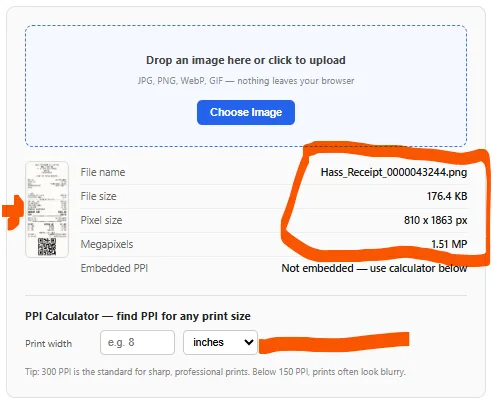
How to Find the Pixel Size of an Image
Using an Online Tool
Upload the image to the pixel finder tool on this page. It reads the file directly in your browser and displays the exact width and height in pixels within a second.
On Windows
Right-click the image file, select Properties, then open the Details tab. The dimensions appear next to “Image” as width x height in pixels.
On Mac
Right-click the image and choose Get Info. Expand the More Info section to see the pixel dimensions.
In a Browser
Right-click the image and select Inspect, or open it in a new tab and check the tab title, which often shows the pixel dimensions.
How to Find Pixels Per Inch (PPI) of an Image
Quick answer: PPI = pixel width ÷ intended print width in inches. For example, a 3000px-wide image printed at 10 inches wide gives you 300 PPI.
PPI vs DPI: What’s the Difference?
PPI (pixels per inch) describes the resolution of a digital image on screen. DPI (dots per inch) describes how many ink dots a printer lays down per inch. The terms get used interchangeably online, but PPI is the correct term for image resolution.
Why PPI Matters
PPI determines print quality. Images below 150 PPI often look blurry or pixelated when printed, while 300 PPI is the standard for sharp, professional prints like flyers, photo books, or business cards.
How to Check or Calculate PPI
Some image files store a PPI value in their metadata, which our tool reads automatically when present. Since most web and phone images don’t include this data, or store an inaccurate default, the more reliable method is the calculator built into the tool below: enter your pixel dimensions and target print size, and it calculates the real PPI for you.
Free Image Pixel & PPI Finder Tool
Upload any image below to instantly see its pixel dimensions, megapixels, file size, and embedded PPI (if available). Use the built-in calculator to find the exact PPI for any print size.
Quick Reference: Pixel Size to PPI at Common Print Sizes
| Pixel Width | 4×6 in Print | 8×10 in Print | Full Page (8.5×11 in) |
|---|---|---|---|
| 1200 px | 300 PPI | 150 PPI | 141 PPI |
| 1800 px | 450 PPI | 225 PPI | 212 PPI |
| 2400 px | 600 PPI | 300 PPI | 282 PPI |
| 3000 px | 750 PPI | 375 PPI | 353 PPI |
Frequently Asked Questions
What is a good pixel size for a website image?
Most website images work well between 1200 and 2500 pixels wide. Anything larger just adds load time without a visible quality gain on screen.
Does resizing an image change its PPI?
Resizing changes the pixel dimensions, which changes the PPI at any fixed print size. Reducing pixel width without changing the print size lowers the PPI and can make the print look softer.
Can I increase PPI without losing quality?
Software can upscale pixel count, but it can’t add real detail that wasn’t captured originally. Heavy upscaling often introduces blur or artifacts, so it’s best to start with the highest-resolution original you have.
Is 72 PPI good for printing?
No. 72 PPI is a legacy screen-display standard and is too low for sharp printing. Aim for 300 PPI for professional print quality.