
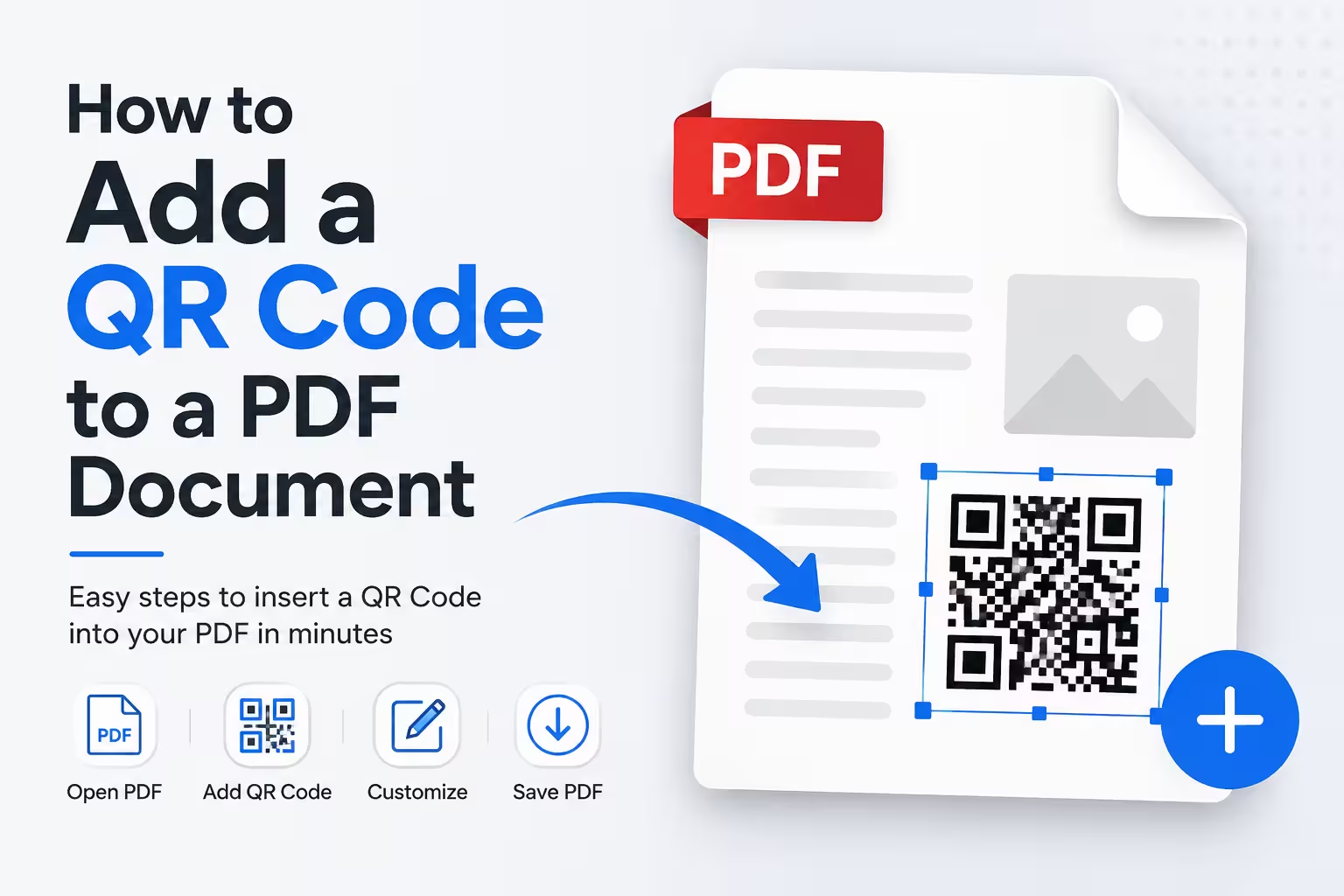
To add a QR code to a PDF, you generate a QR code image from a link or text, then place that image onto one or every page of your PDF using a PDF editor, QR generator with built-in export, or a browser-based tool. No design software or technical skill is required, and you can do the whole thing for free using the tool further down this page.
Why Add a QR Code to a PDF
A QR code turns a static document into an interactive one. Instead of typing out a long URL, a reader just points their phone camera at the code and lands on your page instantly.
This is useful for brochures, invoices, menus, product manuals, event flyers, business reports, and contracts. A QR code can link to a payment page, a video walkthrough, a feedback form, a Wi-Fi login, or a contact card, all without cluttering the page with text.
What You Need Before You Start
You only need two things: the PDF file you want to update, and the destination for your QR code (a URL, phone number, email, or plain text). Everything else — generating the code image and placing it on the page — can be done with free tools.
If your PDF already has empty space in a corner or footer, that’s usually the best spot for the QR code. If it doesn’t, you can still add one; you’ll just want to keep the code small enough not to cover existing content.
Add a QR Code to Your PDF Right Now
The tool below shows you a live preview of your actual PDF page, so you can drag the QR code exactly where you want it instead of guessing at coordinates. Here’s how to use it, step by step.
Add a QR Code to Your PDF
Upload a PDF, enter the link or text for your QR code, choose where it goes, and download the updated file. Everything runs in your browser — your PDF is never uploaded to a server.
How to Use This Tool
Step 1: Upload your PDF. Click the upload box, or drag your file directly onto it. The tool reads the file in your browser only — it’s never sent to a server.
Step 2: Enter what the QR code should do. Type a website URL, phone number, or any text into the field. As soon as you start typing, the QR code preview updates automatically, so you can confirm it looks right before placing it.
Step 3: Choose “every page” or “only the page shown below.” Pick “every page” if you want the code to repeat throughout the document, such as on every page of a report. Pick the second option if you only want it on one page — whichever page happens to be visible in the preview at that moment.
Step 4: Set the size. Drag the size slider until the QR code preview looks large enough to scan comfortably. If the document will be printed, lean toward a larger size rather than a smaller one.
Step 5: Preview your PDF and drag the QR code into place. Your actual page appears in the preview panel with a teal box sitting on top of it. Click and drag that box anywhere on the page — top, bottom, middle, wherever makes sense for your layout. If you’d rather not fine-tune it by hand, use one of the four “snap to corner” buttons underneath the preview for an instant, precise placement.
Step 6: Flip to a different page, if needed. If your PDF has more than one page, use the arrows above the preview to move to the page you actually want the QR code on. This matters only if you chose “only the page shown below” in Step 3 — the page visible when you click Generate is the one that gets the code.
Step 7: Click “Add QR Code & Download PDF.” The tool builds your updated file and gives you a direct download link within a few seconds. The original file name is kept, with “-with-qr” added to the end, so you can tell it apart from the original.
3 Ways to Add a QR Code to a PDF
1. Use a Browser-Based Tool (Fastest, No Software Needed)
This is the simplest method for most people. You upload your PDF, generate a QR code from your link or text, choose where it goes, and download the finished file. Nothing is installed, and nothing leaves your browser. Use the tool below to do this right now.
2. Use a PDF Editor (Adobe Acrobat, Preview, or Similar)
If you already use a PDF editor with image-insertion features, you can generate a QR code separately (using any free QR code generator website), save it as a PNG image, then insert that image into your PDF as you would any other picture. Most PDF editors let you resize and reposition the image with your mouse before saving.
3. Add It at the Source File Level
If your PDF was exported from Word, Google Docs, Canva, or InDesign, it’s often cleaner to insert the QR code image into that original file first, then re-export or re-save as a PDF. This keeps the QR code as a native part of the layout instead of an object added after the fact, which matters if you plan to edit the document again later.
Also see: How to Add a QR Code to an Image
FAQs
Can I add a QR code to a PDF for free?
Yes. You can generate a QR code and add it to your PDF for free using the browser-based tool on this page, without installing any software or creating an account.
Do I need Adobe Acrobat to add a QR code to a PDF?
No. Acrobat is one option if you already own it, but it’s not required. Free browser tools and many other PDF editors can insert an image, including a QR code, onto a PDF page.
Will the QR code still work if someone prints the PDF?
Yes, as long as the QR code is large enough and has clear contrast (typically black on white). Very small or low-contrast codes can be harder to scan once printed, so check the size before finalizing.
Can I add the same QR code to every page of a PDF automatically?
Yes. Tools built for this, including the one on this page, let you choose “every page” as an option so you don’t have to place the image manually on each page one at a time.
Does adding a QR code change the PDF’s text or formatting?
No. A QR code is added as an image layered onto the page, so it doesn’t affect the existing text, fonts, or formatting underneath it.