
To add a watermark to a PDF, upload your file to the tool below, type your watermark text, click where you want it on the page, and download the result. The whole process takes under a minute and works in your browser. You don’t need to install anything or create an account.
Add a Watermark to Your PDF Now
Note: Your file is processed on your device, so your document isn’t uploaded to a server. You can preview every page first, then choose to watermark one page or all of them.
How to Add a Watermark to a PDF: Step by Step
Follow these steps with the tool above:
- Upload your PDF. Click the file field and select your document. The first page appears in the preview.
- Review your pages. Use the Prev and Next buttons to check the document before editing.
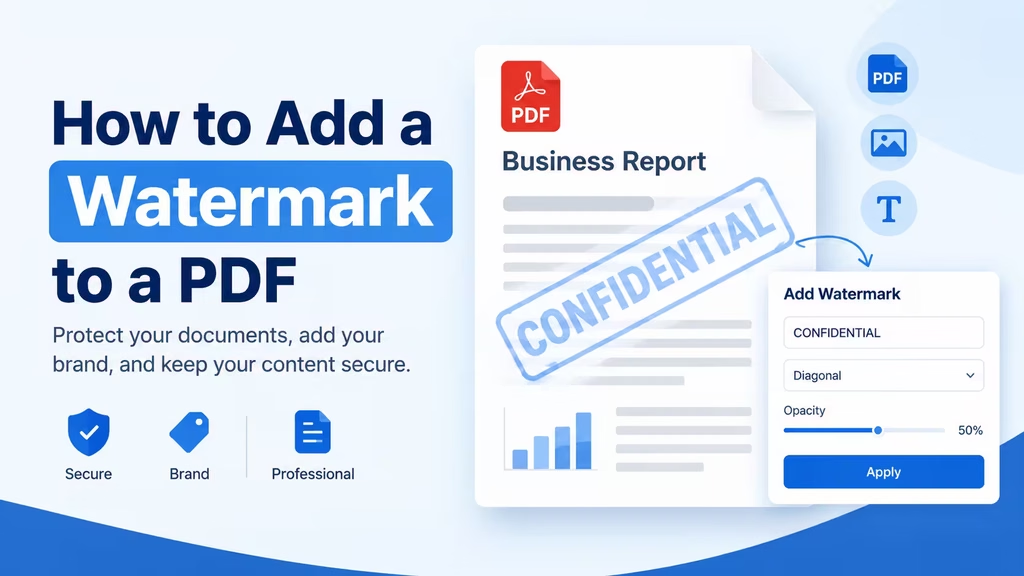
- Enter your text. Type a word or phrase such as “DRAFT” or “CONFIDENTIAL.”
- Adjust the style. Set the size, color, opacity, and rotation. A 40% opacity keeps the page readable.
- Place it. Click anywhere on the page preview. The watermark moves to that spot.
- Choose the scope. Apply it to the current page or to every page.
- Download. Click the download button to save your watermarked PDF.
What is a PDF Watermark?
A PDF watermark is text or an image placed over or behind the page content. It marks a document’s status, ownership, or confidentiality. Common examples include “DRAFT,” “COPY,” and a company name.
Watermarks are visible on screen and in print. That makes them a simple way to discourage unauthorized reuse.
Why Add a Watermark to a PDF?
Watermarks help in several everyday situations:
- Protect ownership. Mark proposals, designs, and reports with your name or brand.
- Show status. Label documents as “DRAFT,” “FINAL,” or “FOR REVIEW.”
- Handle sensitive files. Use “CONFIDENTIAL” on contracts and internal reports.
- Deter sharing. Copies with a visible mark are less likely to be passed off as originals.
Other Ways to Add a Watermark to a PDF
The browser tool is fastest for one-off jobs. Other options exist for different needs:
- Microsoft Word. Add a watermark under Design, then export as PDF. This only works if you have the original Word file.
- Preview on Mac. Preview has no built-in watermark feature, so most Mac users rely on an online tool.
If you also need to sign the document, try Sign PDF Online Free. For more utilities, browse the full set of Online PDF Tools.
Frequently Asked Questions
How do I add a watermark to a PDF for free?
Use our free browser-based tool. Upload your PDF, enter your text, click to place it, and download the file. No software or sign-up is required.
Can I add a watermark to only one page?
Yes. Select “Current page” before downloading, and the watermark appears only on the page you’re viewing. Choose “All pages” to mark the entire document.
Will a watermark reduce my PDF’s quality?
No. The tool adds text on top of the page and leaves the original content unchanged. Text and images stay sharp.
Is it safe to watermark a confidential PDF online?
It’s safest when the file never leaves your device. The tool on this page processes your PDF in your browser, so it isn’t uploaded to a server.