
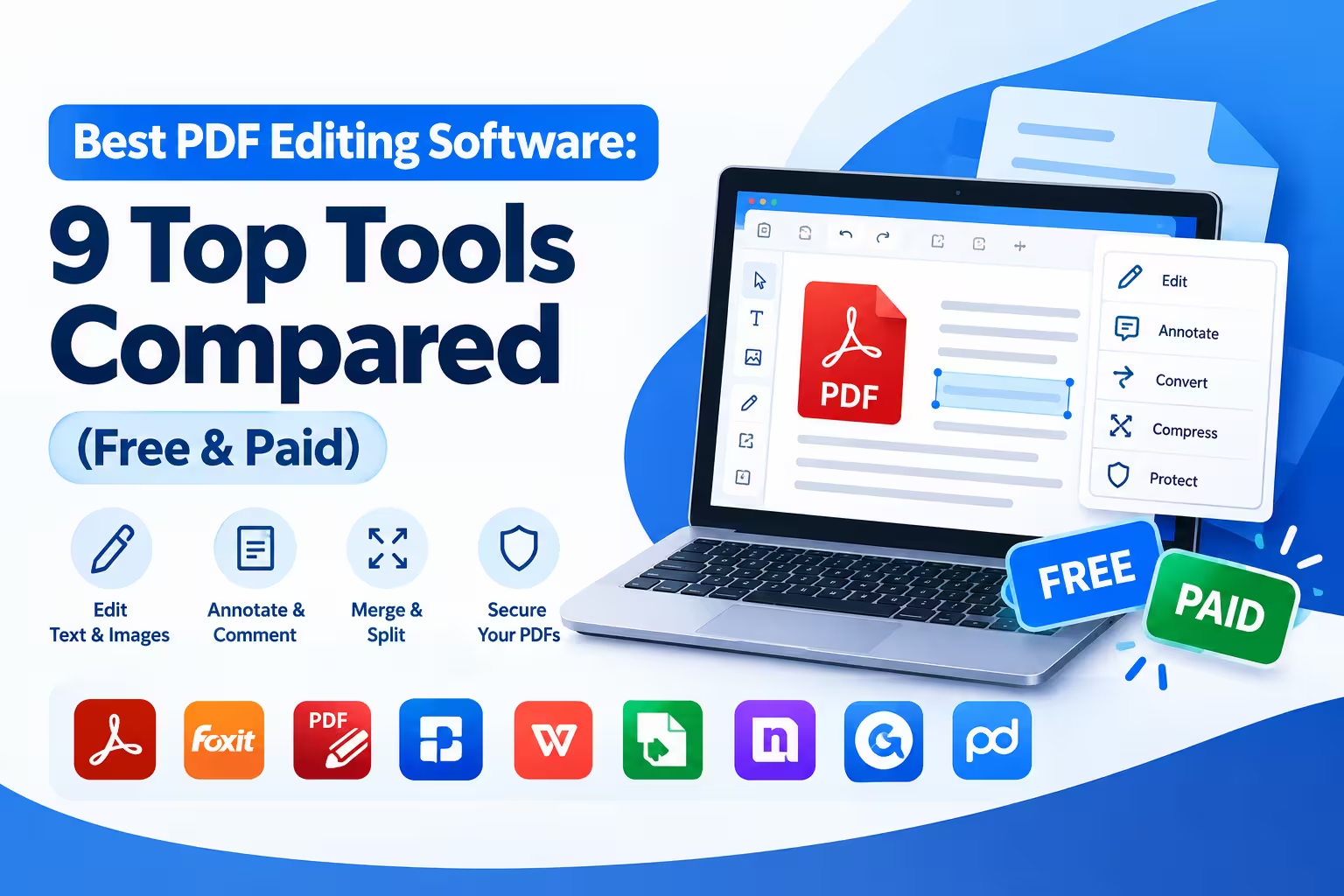
The best PDF editing software in 2026 is Adobe Acrobat Pro for full-featured professional work, while Mainconverter’s free online PDF Tools is the best no-download option for quick, everyday edits. Your right choice ultimately depends on whether you need advanced features like redaction and e-signing or just want to fix a typo and download the file in under a minute.
This guide breaks down the 9 best PDF editors on the market right now, what each one does best, and how to pick the right one for your budget and workflow — no fluff, just the facts you need to decide.
What Makes a Good PDF Editor?
A quality PDF editor lets you do more than just view a file. Look for these core capabilities before you commit to any tool:
- Text and image editing — the ability to change existing content, not just add annotations on top of it.
- Conversion tools — exporting to and from Word, Excel, and image formats without breaking the layout.
- Security features — password protection, redaction, and encryption for sensitive documents.
- OCR (Optical Character Recognition) — turning scanned or image-based PDFs into searchable, editable text.
- E-signature support — collecting or applying legally binding signatures without a separate app.
- Cross-device access — working the same way on desktop, mobile, and browser.
Free online tools cover the first two needs well for most people. Paid desktop software is worth the cost once you need advanced security, OCR at scale, or team collaboration.
Quick Comparison: Best PDF Editors at a Glance
| Tool | Best For | Price | Platform |
|---|---|---|---|
| Adobe Acrobat Pro | Full-featured professional editing | From $19.99/mo | Windows, Mac, Web, Mobile |
| Foxit PDF Editor | Business teams on a budget | From $10.99/mo | Windows, Mac, Web |
| PDF24 Creator | Free desktop editing (Windows) | Free | Windows |
| Smallpdf | Simple online edits and conversions | Free / from $9/mo | Web, Mobile |
| PDF-XChange Editor | Power users who want free + pro tools | Free / from $56.50 one-time | Windows |
| Nitro PDF Pro | AI tools and e-signing for teams | From $14.99/mo | Windows, Mac, Web |
| Canva PDF Editor | Designing visual PDFs and marketing docs | Free / from $12.99/mo | Web |
| EaseUS PDF Editor | Budget-friendly paid alternative to Acrobat | From $6.95/mo | Windows, Mac |
| iLovePDF | All-in-one free web toolkit | Free / from $4/mo | Web, Mobile |
The 10 Best PDF Editing Software Tools in 2026
1. Adobe Acrobat Pro — Best Overall for Professionals
Adobe created the PDF format, and Acrobat Pro remains the benchmark that every other editor is measured against. Reviewers at PCWorld describe Acrobat Pro as the full-featured standard against which competitors are judged, with a broad toolset spanning creation, editing, review, and security in one place (PCWorld).
Acrobat Pro adds secure redaction and advanced OCR on top of the Standard plan, which makes it the better fit for legal, healthcare, and enterprise teams handling sensitive files, according to TechRadar’s 2026 testing (TechRadar).
Pros: Most complete feature set, tight Microsoft Office integration, trusted for compliance work. Cons: Expensive for occasional users; subscription required for full functionality.
2. Foxit PDF Editor — Best Value for Business Teams
Foxit is frequently named alongside Acrobat and Nitro as one of the leading choices for 2026, particularly for cost-conscious individuals and small teams that still need a full editing toolkit (Nitro/GoNitro). It offers comparable editing, OCR, and e-signature tools at a lower price point than Adobe.
Foxit is a solid pick if your team needs multi-user licensing without the enterprise-level cost of Acrobat.
Pros: Competitive pricing, strong collaboration tools, lightweight interface. Cons: Smaller plugin ecosystem than Adobe’s.
3. PDF24 Creator — Best Free Desktop Editor for Windows
For a downloadable, no-cost option, PDF24 Creator stands out as the best overall free Windows tool, packed with the essential editing features people actually need and positioned as one of the strongest Adobe Acrobat alternatives that requires no payment at all.
It’s a good match for Windows users who prefer installed software over browser-based tools and don’t want to pay a subscription.
Pros: Completely free, no watermarks, works offline. Cons: Windows only; interface feels dated compared to newer tools.
4. Smallpdf — Best for Quick Online Conversions
Smallpdf combines a clean interface with a strong set of conversion tools, and testers have found it especially easy to use on mobile screens for on-the-go edits. It handles merging, compressing, and converting PDFs with minimal steps.
The free tier covers occasional use well; frequent users will hit daily limits that push them toward the paid plan.
Pros: Clean, beginner-friendly design; strong mobile experience. Cons: Daily task limits on the free plan.
5. PDF-XChange Editor — Best Free-to-Pro Upgrade Path
PDF-XChange Editor is a full-featured desktop editor that covers most editing needs at a reasonable price, and its free version is genuinely usable if you can live with a small watermark. It’s popular with power users who want desktop-grade performance without a subscription.
Pros: One-time payment option, fast performance, deep annotation tools. Cons: Interface has a steeper learning curve than browser-based tools.
6. Nitro PDF Pro — Best for AI Tools and E-Signing
Nitro positions itself around teams that want editing, e-signing, and AI-assisted tools combined in a single platform, making it a strong fit for organizations standardizing their document workflow (GoNitro).
Pros: Built-in e-signature workflows, AI summarization features, team admin controls. Cons: Pricing scales quickly for larger teams.
7. Canva PDF Editor — Best for Visual and Marketing Documents
Canva’s PDF editor is best suited to designing visually rich documents — think proposals, flyers, or portfolios — rather than editing dense text-based files. TechRadar’s reviewers call it a genuinely enjoyable tool for anyone creating eye-catching PDFs and marketing materials, while noting it lacks the advanced business features of a dedicated editor.
Pros: Best-in-class design tools, huge template library. Cons: Not built for heavy text editing or document security.
8. EaseUS PDF Editor — Best Budget Alternative to Acrobat
EaseUS PDF Editor covers text and layout edits, format conversion, merging, and annotation at a price well below Acrobat’s subscription, while preserving original formatting during conversions (TechRadar).
Pros: Affordable, includes OCR and watermarking, Windows and Mac support. Cons: Smaller feature set than Acrobat Pro for enterprise use cases.
9. iLovePDF — Best All-in-One Free Web Toolkit
iLovePDF bundles more than 20 separate PDF tools — edit, merge, split, compress, convert, watermark, and unlock — into a single free platform, so you don’t need to bounce between five different sites for five different tasks.
Pros: Extremely broad toolset in one place, no installation needed. Cons: Daily usage limits and ads on the free tier.
How to Choose the Right PDF Editor
If you just need to fix text, merge files, or shrink a file size: a free online tool like Mainconverter’s PDF Editor or iLovePDF will handle it in a couple of minutes with zero cost.
If you handle contracts, compliance documents, or need redaction: Adobe Acrobat Pro or Foxit are worth the subscription for the security and audit features they include.
If you’re designing a document rather than editing one: Canva is the better tool for visual layout work.
If you want desktop software without a recurring subscription: PDF24 Creator or PDF-XChange Editor’s one-time license options fit that need.
Frequently Asked Questions
Is there a completely free way to edit a PDF?
Yes. Online tools like Mainconverter’s PDF Editor, iLovePDF, and PDF24 Creator let you edit, merge, and convert PDFs at no cost, with no account required for basic tasks.
What is the best free PDF editor for Windows?
PDF24 Creator is widely rated as the top free downloadable option for Windows, offering a full set of editing tools with no watermarks or payments.
Why is PDF still the standard business document format?
PDF was published as the open standard ISO 32000-1 in 2008, which locked in a fixed layout that displays identically across devices and operating systems — a big reason it remains the default format for contracts, invoices, and forms today (ISO / Wikipedia).
Do I need OCR software to edit a scanned PDF?
Yes, if the PDF is a scanned image rather than digital text. OCR converts the scanned image into selectable, editable text — a feature included in Adobe Acrobat, Foxit, and EaseUS PDF Editor.
The Bottom Line
Explore Mainconverter’s full library of online PDF tools to handle your next document task in one place.